Setting up WarmReply
About 15 minutes, on your own. Nothing here is a surprise: this is the whole process.
WarmReply connects Yelp Request-a-Quote leads to HighLevel (also called GoHighLevel or GHL): leads land in Conversations, replies deliver back into the same Yelp thread. Setup is five self-serve steps — install, add your Yelp page, connect Zapier, test, greeting — and takes about 15 minutes.
You can read this before installing anything. If any step looks like more work than you expected, tell us at [email protected]. The whole point of WarmReply is that setup does not need a phone call.
Before you begin
- A claimed Yelp business page with Request a Quote turned on.
- A HighLevel account. WarmReply installs into a sub-account.
- A free Zapier account. You will create it during step 3 if you do not have one.
1 · Install from the marketplace
Install WarmReply into the sub-account whose Yelp leads you want (sign in to HighLevel first if you are not already). When it finishes, you land straight in the setup screen, already signed in. There is no password to create and nothing to copy across.
From then on, WarmReply sits in that sub-account's left sidebar. Opening it later shows the status of your leads rather than the setup steps again.
2 · Add your Yelp page
Paste the link to your Yelp business page, the ordinary public one, like
yelp.com/biz/your-business-name. Add one line per page if you have
several. This is how WarmReply labels each conversation with the page it came from,
which matters as soon as you have more than one location.
3 · Connect Zapier
This is the longest step, so it is built as a checklist that verifies itself. You build four small connections in Zapier — five with the recommended Yelp-app sync — each two steps and a couple of minutes, and each line turns green on its own the moment that connection starts working. Nothing to confirm, no guessing whether it took.
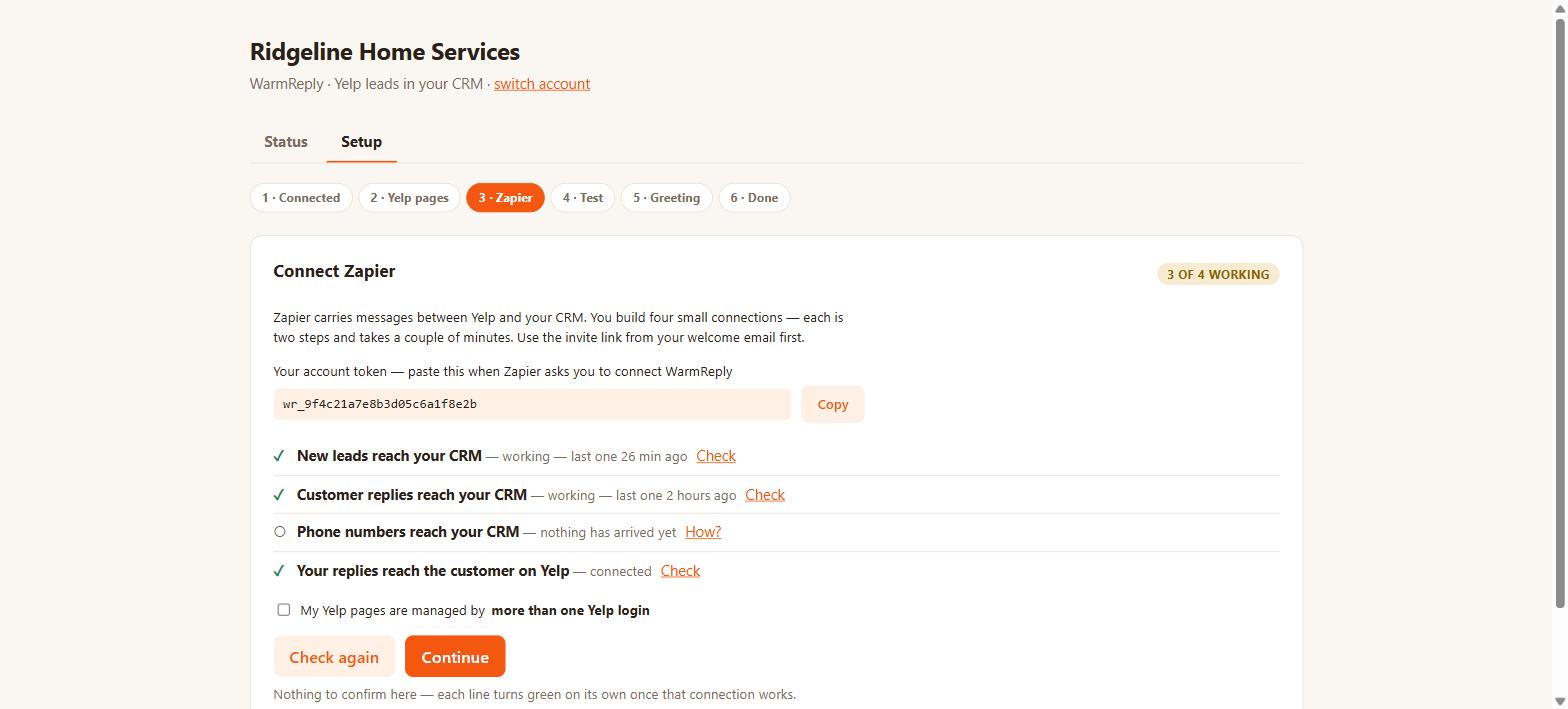
If a line has not gone green, How? next to it opens the instructions for that one connection only: which trigger, which action, and exactly what to put in each field. You never get a wall of instructions for all of them at once.
4 · Send yourself a test lead
One button creates a test lead and pushes it through the real path, so you can see it land in Conversations before a real customer ever does. It is a fake customer: no message is sent to anyone on Yelp, and the test never triggers your instant greeting.
5 · Switch on the instant greeting (optional)
Write the message every new lead should get within seconds of arriving. You can use their first name, the job type, the ZIP and the requested dates, and a live preview shows exactly what a customer will receive. It is off until you turn it on.
What it looks like afterwards
Once setup is done, opening WarmReply shows whether everything is working and which leads have come in. If something breaks (a connection switched off, access revoked), it says so plainly and links to the step that fixes it.
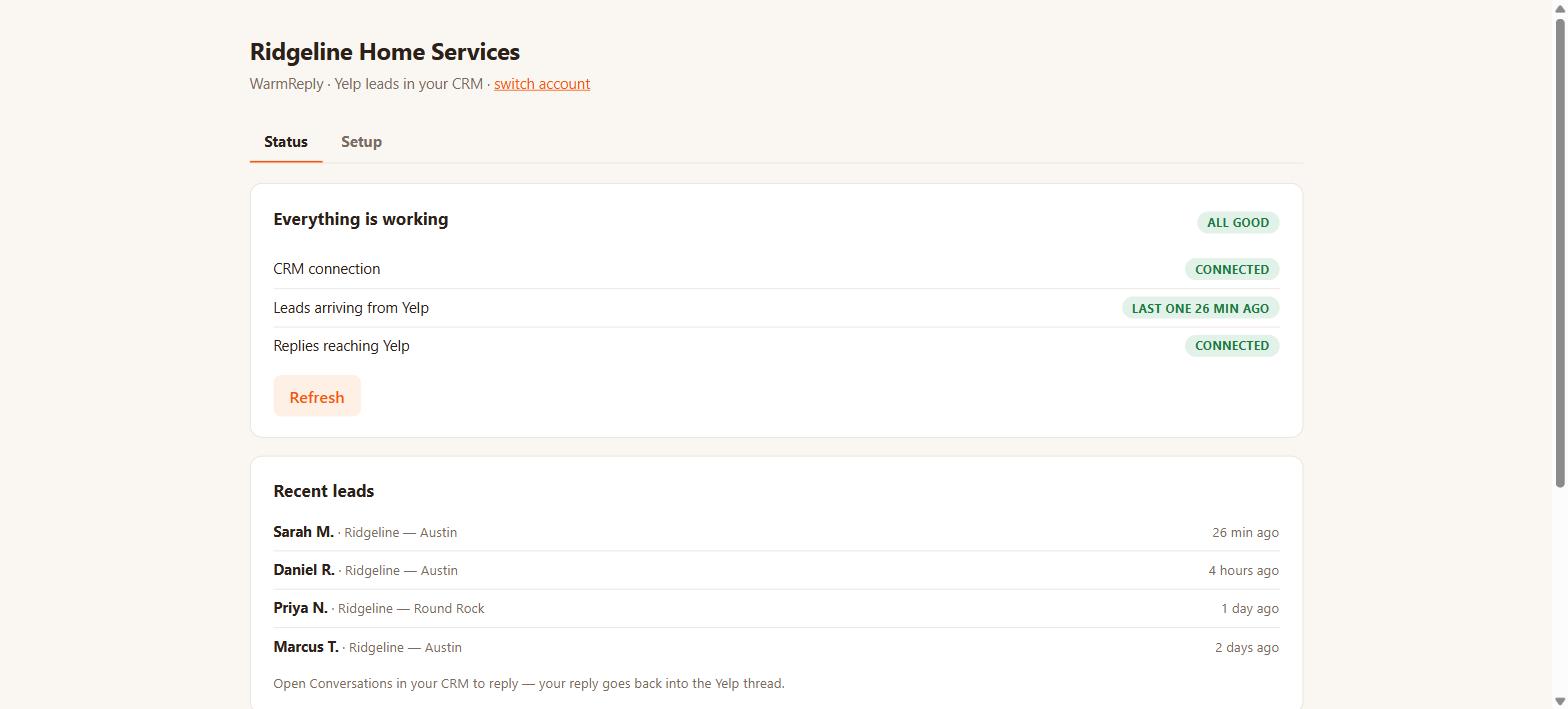
Your team does not use this screen day to day; they work the leads in Conversations, exactly as they already do for every other channel.
Still have a question?
The questions section covers what most people ask, the support page covers what to do when something is wrong, and [email protected] reaches us directly.